
Blog
Email marketing notes.
Email Marketing
How to Automatically Add a Tag in Klaviyo
Learn to label Klaviyo contacts automatically with profile properties, flows, segments, forms, and ecommerce behavior—without confusing them with tags.
By Peak Meadow Published August 30, 2026
How to Automatically Add a Tag in Klaviyo
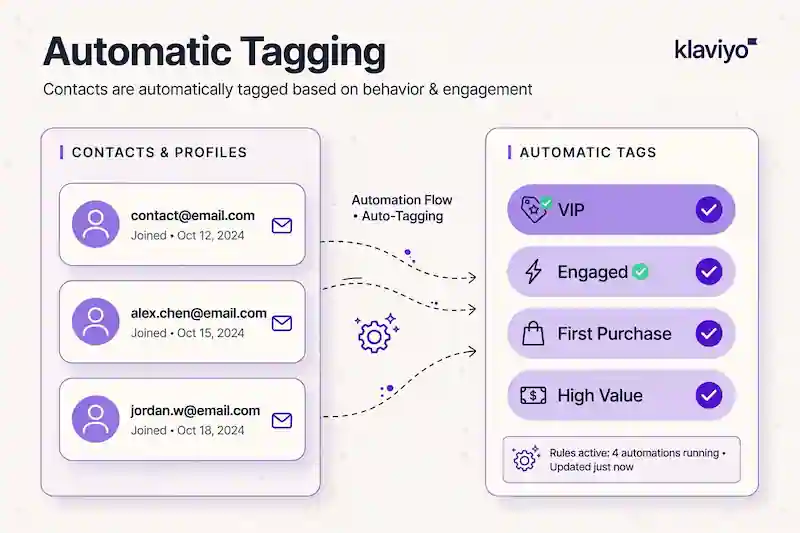
If you want to know how to automatically add a tag in Klaviyo, the short answer is that for contacts, you usually don’t add a Klaviyo “tag” at all. You add or update a custom profile property in a flow, then use that property to build segments, filter flows, and personalize emails.
Because Klaviyo uses the word “tags” differently than some other email platforms, that’s an important distinction. In many tools, tags are contact labels. In Klaviyo, tags are mainly used to organize account items like campaigns, flows, lists, and segments. For customer-level labels, custom profile properties are the better tool.
For example, instead of tagging a customer as VIP, create a profile property called Customer Status and set the value to VIP. Once that property exists, Klaviyo can use it in segments, flow filters, conditional splits, and email personalization.
Klaviyo Tags vs. Profile Properties
Before you build anything, it helps to understand the difference.
| Use case | Best Klaviyo tool | Example |
|---|---|---|
| Organize campaigns, flows, lists, or segments | Tags | BFCM, Lifecycle, Retention |
| Label a customer based on behavior | Custom profile property | Customer Status = VIP |
| Group contacts automatically | Segment | People where Product Interest = Running Shoes |
| Trigger or filter automations | Profile property or event data | Has Purchased Subscription = true |
Klaviyo’s tags documentation says tags organize campaigns, flows, lists, and segments; they cannot be used to group profiles. If your goal is “label this customer so I can market to them differently,” store the label as a custom profile property and build a segment from it.
When Should You Automatically Label Contacts?
Automatic labeling is useful when the data will change how you market to someone. If the label doesn’t change targeting, timing, or personalization, you probably don’t need it.
Good ecommerce use cases include:
- Marking someone as a VIP after they spend over a certain amount
- Tracking a product category interest after they view or buy from that category
- Identifying customers who completed a quiz
- Separating wholesale, retail, and loyalty customers
- Tracking customers who reached the end of a specific flow
A profile property does not create value on its own. It earns its place when it makes a segment, flow branch, exclusion, or message more accurate.
How to Automatically Add a Tag in Klaviyo Using a Flow
The most common method is to add a Profile property update action inside a Klaviyo flow. Klaviyo’s flow-action documentation says the action can create, update, or delete a custom property when someone reaches that step.
Here is the basic process:
- Open the flow where the label should be applied.
- Drag a Profile property update action into the flow.
- Click + Add step.
- Choose whether you want to update an existing property or create a new one.
- Enter the property name and value.
- Save the step.
- Test the path with a profile that should qualify, then set the relevant flow actions live when you’re ready.
Let’s say you want to label people who finish your welcome series. You could create:
| Field | Value |
|---|---|
| Property name | Welcome Series Completed |
| Property type | Boolean |
| Property value | true |
Then build a segment for people where Welcome Series Completed equals true.
Example: Mark a Customer as a VIP
VIP logic is one of the easiest ways to use automatic profile properties. You might build a segment-triggered flow where someone enters when they meet conditions like:
- Total placed-order value is at least
$500 - Number of orders is at least
3 - Customer has bought in the last
180 days
Inside that flow, add an Update profile property step:
| Property | Value |
|---|---|
Customer Status |
VIP |
From there, you can send VIP campaigns, give early access, exclude them from aggressive discounts, or route them into a different retention flow.
Example: Track Product Category Interest
You can also use properties to track what someone seems interested in.
A simple setup could look like this:
| Trigger | Profile property update |
|---|---|
Viewed Product where category equals Running Shoes |
Product Interest = Running Shoes |
Placed Order where category equals Skincare |
Product Interest = Skincare |
Submitted quiz with answer Sensitive Skin |
Skin Concern = Sensitive Skin |
If a property can have more than one value, consider using a list-type property. Klaviyo notes that each value added to a list property through a flow needs its own update step. Its documentation also recommends a one-minute delay between adjacent profile-property updates because simultaneous actions can interfere with one another.
You can also collect profile properties from Klaviyo forms, quizzes, and preference pages. A skincare brand might collect Skin Concern. A fashion brand might collect Preferred Style. The key is to ask only for data you’ll use.
How to Use the New Property After It’s Added
Once your automatic property is being added, the next step is to use it. Common options include:
- Build a segment around the property
- Add a conditional split in a flow
- Personalize email content with dynamic blocks
- Exclude certain people from campaigns
- Trigger a new flow when someone joins a segment
For example, if you set Customer Status = VIP, you can send VIP customers early sale access instead of the same campaign everyone else gets. If you set Product Interest = Skincare, you can send skincare content to that group and avoid sending irrelevant product emails.
Remember that a custom property persists until another action updates or deletes it. If the label should change as order totals, engagement, or inventory behavior changes, use a dynamic segment built from the source data or create an explicit reverse path that removes or replaces the property. Otherwise, an old VIP or interest value can quietly become misleading.
Mistakes to Avoid
Automatic profile properties are useful, but messy data can create problems later. Avoid these mistakes:
| Mistake | Why it causes problems |
|---|---|
| Creating too many one-off properties | Your account becomes hard to manage |
| Using unclear property names | Future segments become confusing |
| Mixing formats | VIP, vip, and Vip Customer may be treated differently |
| Overwriting list properties | You may lose earlier interests or preferences |
| Forgetting flow filters | Some people may skip the update step if they fail flow conditions |
| Leaving values without a reset rule | A once-accurate label can remain after the customer no longer qualifies |
Use simple names and keep a short naming system:
Customer StatusProduct InterestLifecycle StageQuiz ResultPreferred CategoryFlow Completed
Clear names make Klaviyo easier to manage as your account gets more complex.
Should You Use Tags, Lists, Segments, or Properties?
Use this quick rule:
| If you want to… | Use this |
|---|---|
| Organize Klaviyo assets | Tags |
| Store information about a contact | Profile properties |
| Group people who match certain rules | Segments |
| Keep a static subscriber source | Lists |
| Automate a customer journey | Flows |
Avoid using lists as a substitute for customer labels. Lists are better for subscription sources, segments for dynamic targeting, and profile properties for contact-level information.
Conclusion
To automatically add a tag in Klaviyo for a contact, first decide whether the label should be permanent or should follow live customer behavior. Use a Profile property update action for a stored label, then test both the qualifying path and the rule that updates or removes it later. If membership should always reflect current order or engagement data, build a dynamic segment instead. That distinction keeps your customer groups useful long after the first flow runs.